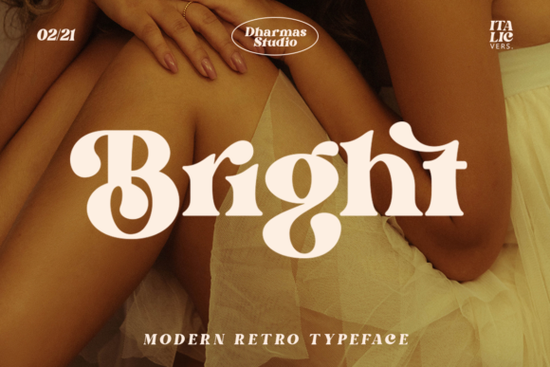
If you’re looking for a font that blends retro charm with modern clarity, Bright Font might be exactly what your next project needs. It’s a stylish serif typeface with bold, clean lines and just enough personality to stand out especially if you’re going for that 60s or 70s vibe. Whether you’re designing posters, packaging, logos, or print-on-demand products, this font brings a fun, vintage energy without sacrificing readability.
What makes Bright Font especially useful is how flexible it is. You’re not stuck with one look the font includes over 50 unique alternates and ligatures, all PUA encoded so they’re easy to access in most design software. That means you can mix and match letterforms to create something that feels custom, even if you’re working fast or on a tight budget.
Who should use Bright Font?
This font works well for:
- Small business owners who want their branding to feel nostalgic but still fresh think coffee shops, record stores, or boutique clothing lines.
- Print-on-demand sellers creating t-shirts, mugs, or tote bags with retro slogans or band-style graphics.
- Crafters and hobbyists making invitations, scrapbooks, or wall art with a handmade, vintage aesthetic.
- Graphic designers building layouts that need a little extra character without going overboard.
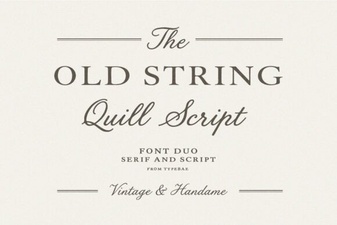
It pairs nicely with simpler sans-serifs or handwritten fonts if you want contrast for example, try combining it with something like Old String for a textured, artisanal feel, or Lemon and Orange if you’re aiming for playful summer vibes.
How do the alternates and ligatures work?
PUA encoding (that’s Private Use Area) means the special characters are built into the font file itself, not tucked away in separate files or hard-to-find panels. In programs like Adobe Illustrator, Photoshop, or even Canva (with some limitations), you can open the glyph panel and scroll through stylistic sets to swap out standard letters for more decorative ones.
For example:
- Swap “A” for a swirly alternate when designing a logo.
- Use connected ligatures like “th” or “st” to give headlines a hand-lettered flow.
- Mix uppercase and lowercase alternates in the same word for an organic, uneven rhythm great for posters or album covers.
You don’t have to use every alternate. Sometimes just switching one or two letters is enough to make a headline pop.
What projects does it work best for?
Bright Font shines in contexts where personality matters more than minimalism. Think:
- Vintage-inspired event posters
- Product labels for handmade goods (soaps, candles, jams)
- Social media graphics with throwback themes
- T-shirt designs with punchy one-liners
- Book covers for fiction with a nostalgic or quirky tone
It’s not the right pick for corporate reports or minimalist web headers but that’s not what it’s meant for. If your goal is warmth, nostalgia, or a touch of irreverence, Bright delivers.
Is it easy to install and use?
Yes. Once you download the font files (usually OTF or TTF), installing them is the same as any other font on your system. On Mac, double-click and hit “Install.” On Windows, right-click and choose “Install for all users.” Most design apps will recognize it immediately.
If you’re using software that doesn’t support OpenType features (like some older versions of Silhouette Studio or Cricut Design Space), you might not see all the alternates. But the base font still looks great on its own.
For reference, you can check out the full listing here: Bright Font.
Any tips for getting the most out of it?
A few practical ideas:
- Don’t overcrowd it. Let the letters breathe generous spacing helps the retro details stand out.
- Try it in all caps. The bold weight holds up well, and the alternates add subtle variation even in uppercase settings.
- Pair with warm colors. Mustard yellow, burnt orange, olive green, or faded pink enhance the 70s mood.
- Use sparingly in body text. It’s a display font first best for headlines, titles, or short phrases.
If you already own Bright Font, revisit the glyph panel next time you’re stuck. Sometimes flipping through alternates sparks new ideas you wouldn’t have thought of otherwise.
Next step: Try before you commit
Before downloading, test how Bright Font looks with your actual content. Type out your headline or slogan in a free tool like FontDrop or Wordmark.it, then screenshot it into your layout. See how it feels alongside your images, colors, and other typefaces. If it adds the right mood and doesn’t clash you’re good to go.
Get Started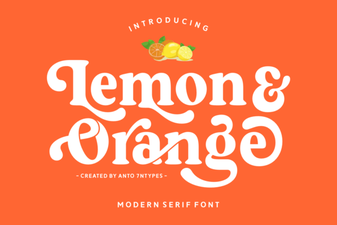 Fresh Font Pairings: Citrus & Sweet Orange
 Vintage String Fonts for Creative Digital Projects
 Autography: the Designer’s Signature Font
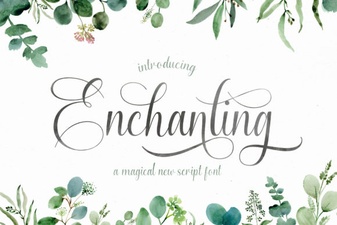 Script Fonts to Elevate Your Creative Projects
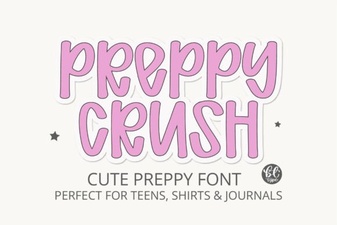 Preppycrush Font: Style & Download Guide
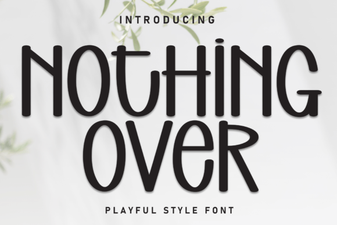 Creative Font Pairing Ideas for Your Design Projects